About
Don’t just ask questions about payroll. Get work done. The Gusto MCP server brings your live Gusto data, and the tools to take action, into the AI tools you already use.
Ask questions grounded in your real payroll and people data, or hand off the work itself: log time, onboard an employee or contractor, prepare and run payroll. Every write comes back to you for confirmation before anything moves.
Connecting the MCP gives your AI client access to live Gusto data alongside email, spreadsheets, and the other tools it already has access to. Better context enables answers grounded in your live Gusto data and more useful actions.
The Gusto MCP server also supports connectors for Claude, ChatGPT, and Slack.
Important Security & Usage Guidelines
Please adhere to the following critical guidelines:
-
Use the Gusto MCP Server in Isolation
- To prevent potential data leakage and ensure the integrity of your session, use the Gusto MCP server in an isolated environment. Do not connect other MCP servers to the same client session that is connected to Gusto. Mixing servers can lead to unpredictable behavior, including the potential for your Gusto data to be inadvertently sent to another service.
-
Connect with Trusted Clients Only
- Please connect to the Gusto MCP server only through trusted, well-established MCP clients such as Claude, Gemini and Cursor. Using unverified or untrusted clients could expose your sensitive data to security vulnerabilities.
-
Require Manual Confirmation for All Tool Use
- LLMs can sometimes misinterpret prompts. To prevent unintended data access, it is critical that you don’t enable any automatic tool execution features in your client. You should always be prompted to confirm any tool call before it is executed. This gives you final control and helps ensure the model is only accessing the data you explicitly approve.
-
Verify All Outputs for Accuracy
- Treat all LLM-generated responses as a starting point, not a final source of truth. Always verify the accuracy of both the tool calls the model suggests and the final responses it generates. Because LLMs can occasionally misinterpret data or "hallucinate" information, it’s critical that any data presented to you is correct before acting on it.
-
Opt-Out of Model Training
- Your prompts and the resulting responses may contain sensitive information. To protect this data, you must configure your LLM client to opt out of sharing data for model training purposes. Most major providers offer this privacy setting, which may be labeled as "Chat history & training" or similar. Failure to do so could result in your sensitive company data being stored and used by the third-party LLM provider.
Capabilities
Our MCP server provides an OAuth2 based connection process and allows you to select the categories of data to which your chosen LLM will have access, directly shaping its capabilities.
To illustrate the power and flexibility of MCP, here are a few sample prompts. This list is not exhaustive but is intended to inspire your own use cases:
-
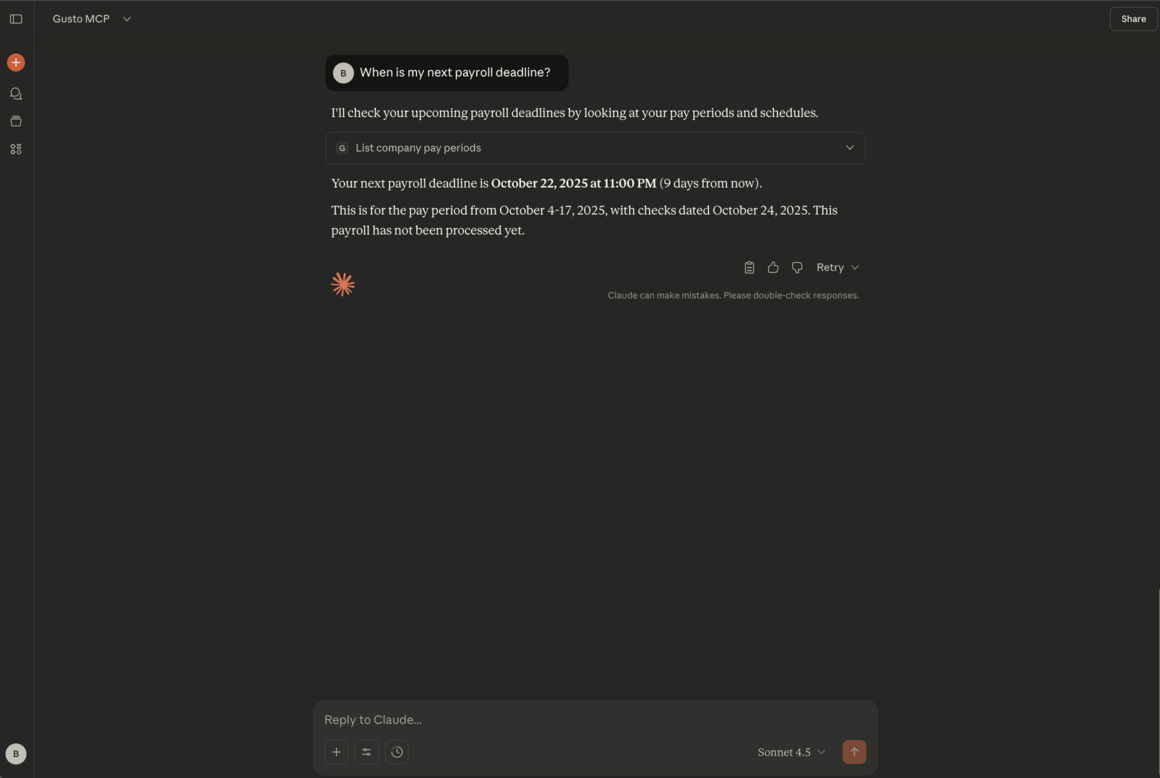
“When is my next payroll deadline?”
-
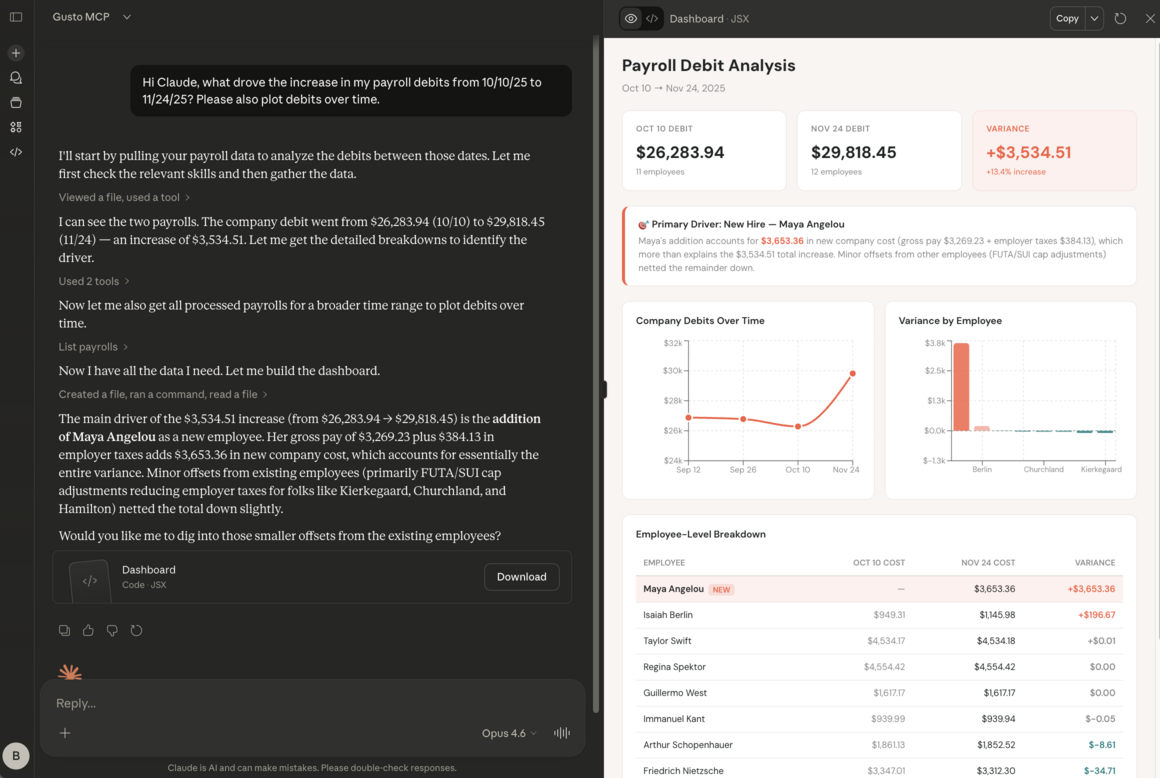
"Build a chart breaking down my most recent payroll"
-
“Why was my most recent payroll more expensive than usual?”
-
“Do I have any employees with birthdays coming up next month?”
-
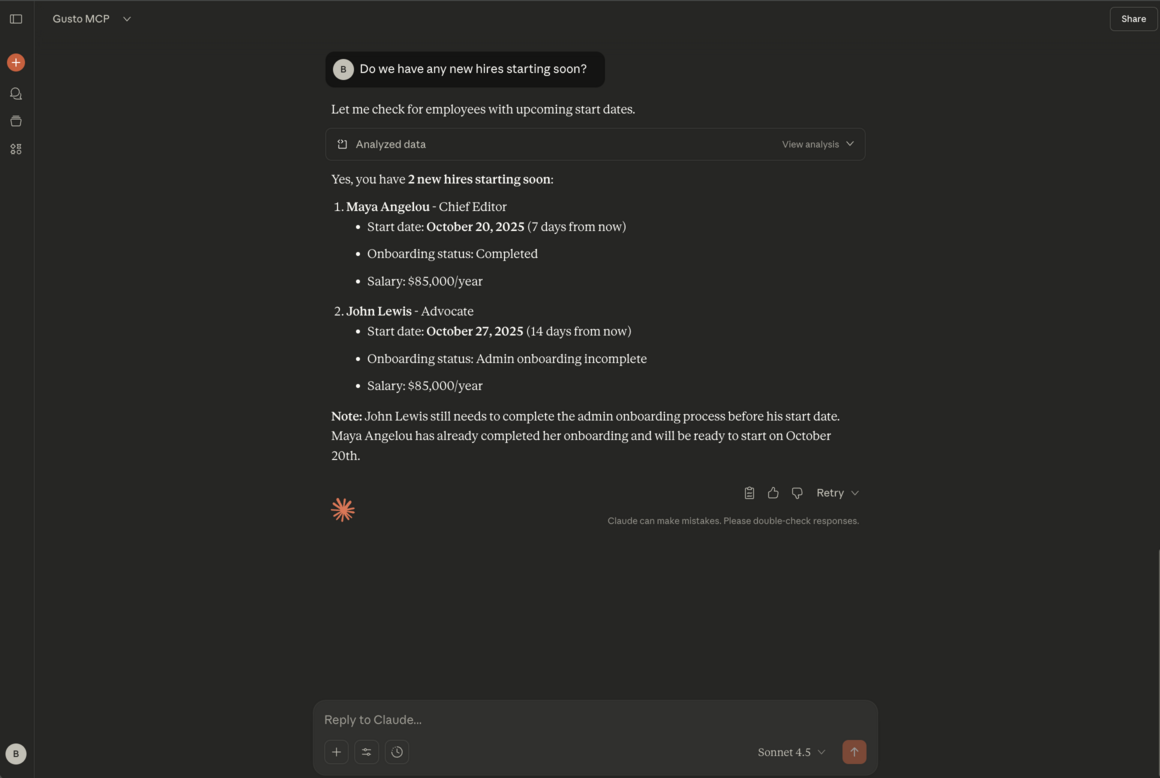
“When does {{new hire name}} start?”
-
“How much was my most recent contractor payment?”
-
“What was my tax liability on my most recent payroll?”
-
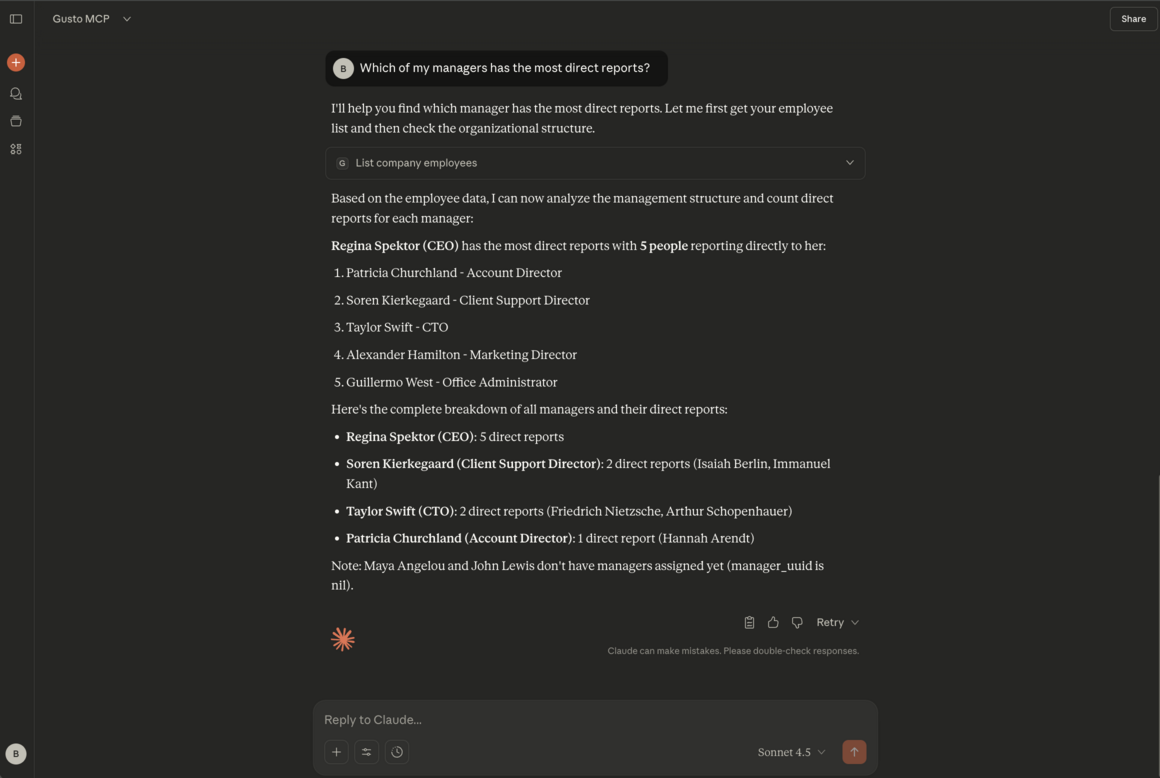
“How many employees report to {{manager name}}?”
This is just a starting point. The true power of MCP lies in its adaptability to your unique operational needs and the creative prompts you design.
Getting started with the MCP
Platform requirements
- MCP server support
- Dynamic client registration support
Prerequisites
- Primary or global admin permissions in Gusto
To use the Gusto MCP server on AI platforms, use https://mcp.api.gusto.com as the URL for the MCP connection. You will then be prompted to connect and authenticate.
Getting started with Slack
Prerequisites
- Slack instance with Apps enabled
- Primary or global admin permissions in Gusto
Setup
- Click here to begin the installation flow
- Select the workspace in which you'd like to install Gusto
- Click "Install" or "Submit Request," depending on your Slack permissions
- Once installed, navigate to the app by inputting @Gusto in your search bar
- In the "Home" tab, click "Connect"
- Go through the authorization flow, selecting the company you'd like to connect if prompted
- Click "New Chat" in the top right corner of the Gusto App in Slack
- You're now ready to input your first query!
Legal and privacy
- Privacy Notice
- Terms of Service
- Payroll Terms
- CLI Beta Agreement
- Employer DPA (business customers subject to data-protection law)
These applications and connectors use third-party artificial intelligence models, which may produce inaccurate or incomplete outputs. Gusto is not responsible for errors in responses provided by third-party artificial intelligence models or for any actions taken in your Gusto account based on those responses. You should always verify information and review actions before confirming them. This content is not to be taken as tax, legal, benefits, financial, or HR advice. Since rules and regulations change over time and can vary by location, consult a lawyer, tax, or HR expert for specific guidance.
AI platforms referenced for illustrative purposes only; Gusto MCP is not affiliated with or endorsed by any AI platforms.