
About
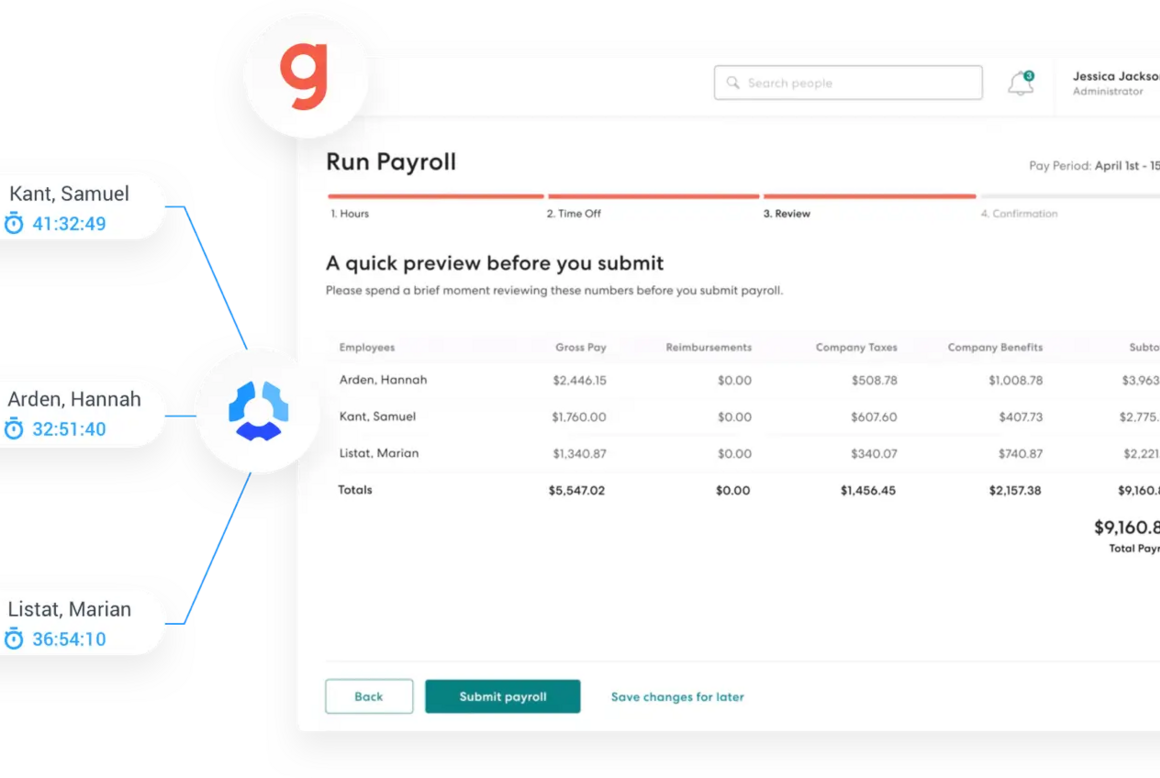
Connect Hubstaff’s time tracking with Gusto to use the hours you track when processing payroll, no manual re‑entry and fewer mistakes. You can import your employee list from Gusto into Hubstaff, then choose who to sync going forward.
How It Works with Gusto
- Sync timesheets to payroll: Track time in Hubstaff and use those hours when you pay your team via Gusto, so you don’t have to retype time.
- Keep people data in sync: Import your Gusto roster, match people to existing Hubstaff users or invite new ones, and (optionally) enable daily syncing of newly added employees.
- Review before you pay: Use Hubstaff’s timesheet approvals if you want an extra check before processing payroll.
Key Benefits
- Data that syncs: Employee roster (import to Hubstaff), tracked hours for payroll processing in Gusto
- Best for: Hourly W‑2 teams that track time and run payroll in Gusto
- Employee selection: Sync everyone or choose specific employees to link.
- New hires: Optional Sync new members daily to auto‑import newly added Gusto employees into Hubstaff.
Integration Guide
Follow these steps to integrate your Gusto account with Hubstaff:
- Connect – In Hubstaff, go to Settings → Integrations, choose Gusto, and authorize the connection.
- Choose your company – Select the Gusto company you want to connect.
- Sync your roster – Sync everyone or select individuals; match to existing Hubstaff users or invite new members. (You can also enable Sync new members daily.)
- Track time & run payroll – Your team tracks time in Hubstaff; when you process payroll in Gusto, you’ll use those tracked hours.
Additional Considerations
- Available on Hubstaff Team plan or higher.
- Supports hourly W‑2 employees in Gusto. Contractors and fixed‑rate employees aren’t supported because the Hubstaff connection is a “job” in Gusto, and contractors/fixed‑rate roles can’t have multiple jobs. Gusto also does not allow syncing payments for 1099 contractors.
- Make sure employees and pay periods are set up in Gusto before linking and syncing users.
See the Hubstaff setup guide for step‑by‑step instructions.
What you can do
Data sync between Gusto and Hubstaff
- Import employees from Hubstaff to Gusto.
- Import employees from Gusto to Hubstaff.
- Ongoing sync of employee information in Hubstaff and Gusto.
- Sync your team’s hours from Hubstaff into Gusto for quick and accurate payroll.