
About
SpotOn Teamwork helps restaurant teams streamline payroll by syncing labor data—like hours, tips, and wages—directly from the POS into Gusto. Built for hospitality operations, Teamwork automates wage calculations, supports multi-role employees, and ensures payroll accuracy across locations. By reducing manual entry and compliance risks, it gives operators more time to run their business.
How it works with Gusto
- Sync hours, roles, tips, and wages from SpotOn Teamwork into Gusto for accurate payroll runs.
- Connect your SpotOn and Gusto accounts through Teamwork’s payroll mapping settings.
- Automate tip reporting and wage calculations across multiple job roles and locations.
- Ensure compliance with labor rules like tip credit and overtime across your organization.
Key Benefits
- Eliminate manual payroll entry with automatic syncing from POS to Gusto.
- Improve accuracy for tipped and multi-role employees.
- Stay compliant with wage laws and overtime requirements.
- Save time processing payroll across one or many restaurant locations.
- Empower operators with audit-ready labor and payroll reporting.
Integration Guide
- In Teamwork, click the gearwheel menu and go to Payroll Settings.
- Scroll to the default or unique Paygroup and set the Payroll Export Type to Gusto Payroll API. Click Save Payroll Options.
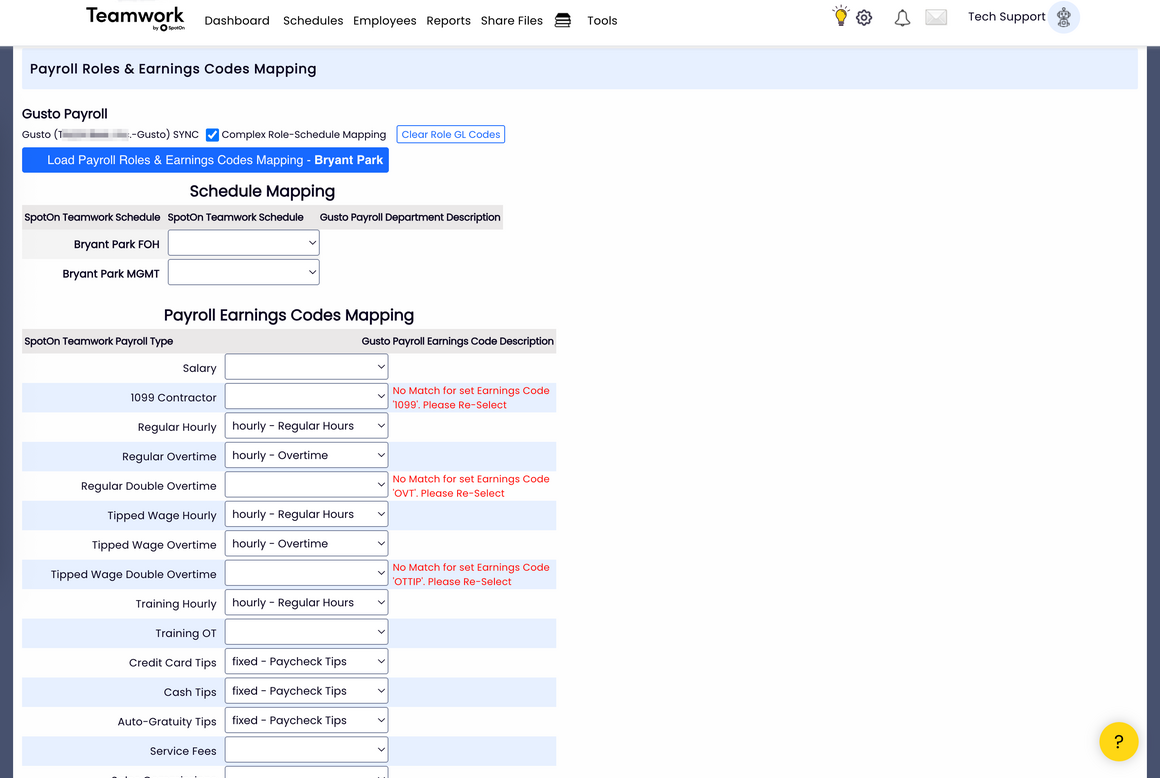
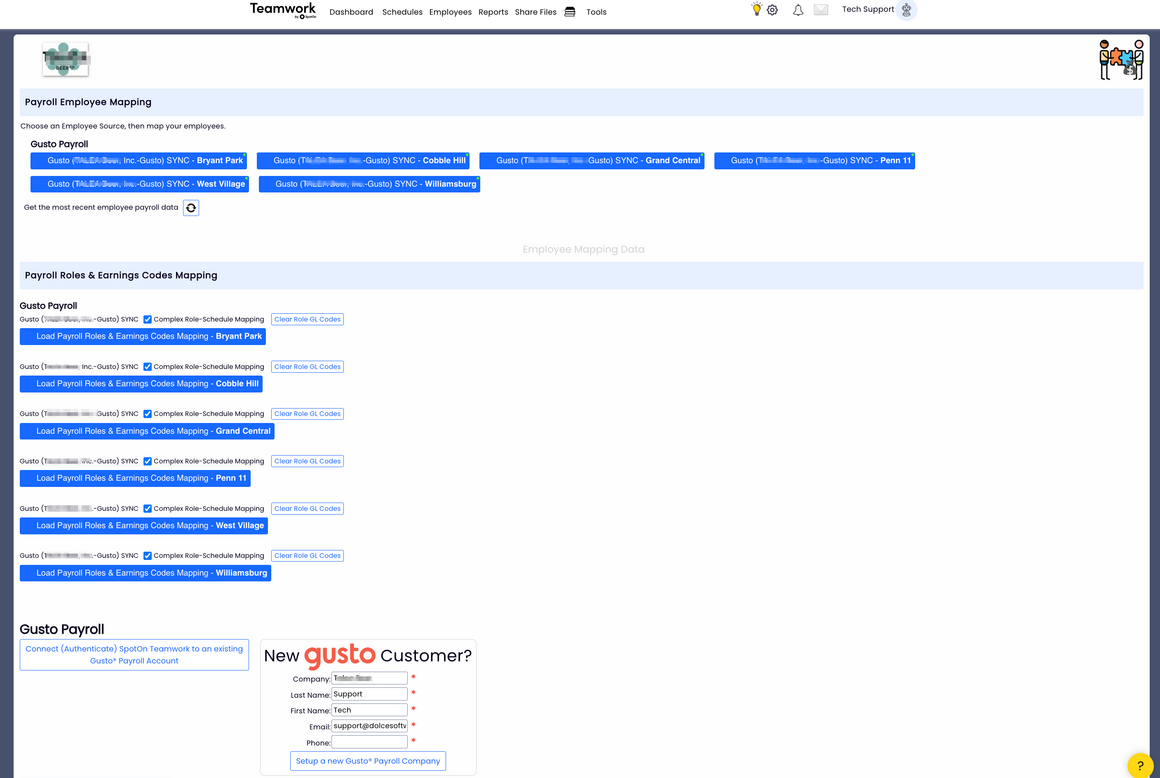
- Return to the gearwheel menu and select Payroll Mapping.
- Scroll to the Gusto Payroll section.
- To create a new Gusto account: fill out your company info under "New Gusto Customer?" and click Setup a New Gusto Payroll Company.
- To connect an existing Gusto account: click Connect Teamwork to an Existing Gusto Account and follow the prompts until you see a success message.
- To log into Gusto from within Teamwork, go to Payroll Mapping → Gusto Payroll and click Login to your Existing Gusto Account.
- To link Teamwork with your Gusto account(s):
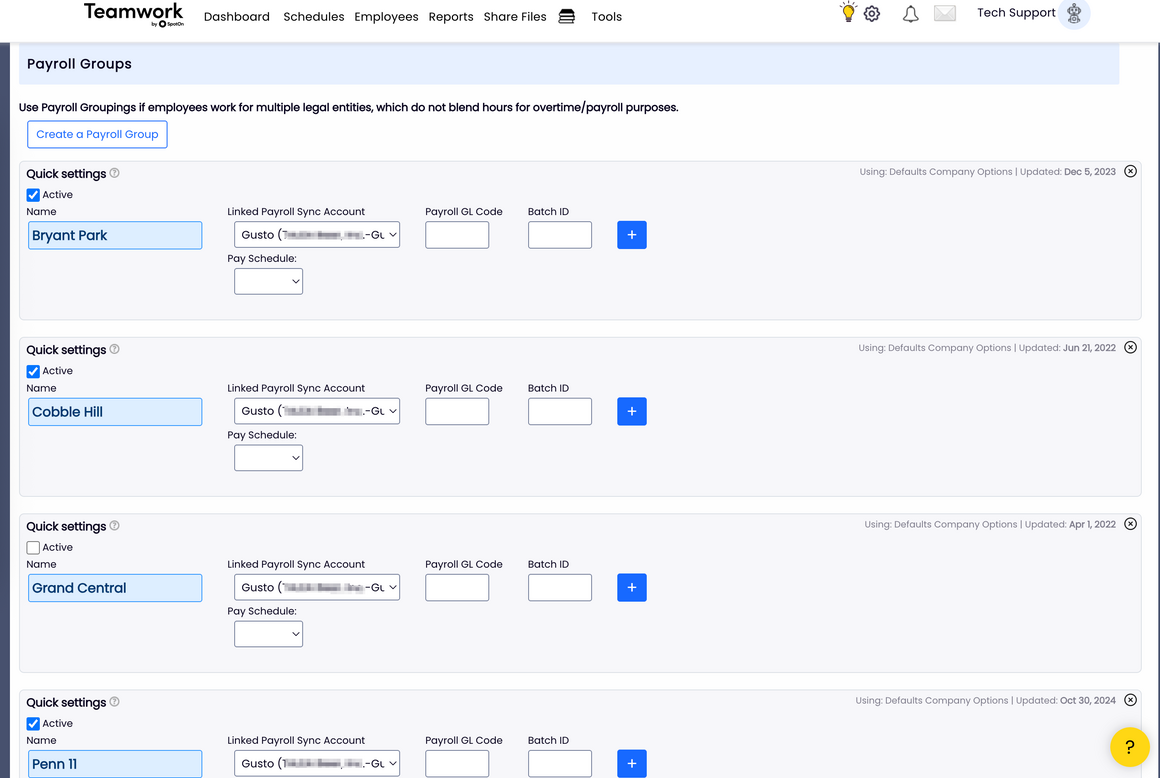
- Go to Payroll Settings and scroll to the Payroll Group section.
- If a payroll group exists, select the correct Gusto account from the Linked Payroll Sync Account dropdown.
- If not, click Create a New Payroll Group, name the group, assign schedules, and select the correct Gusto account.
- To Complete Payroll Mapping click the gearwheel menu and click the Gusto account under Payroll and Warnings Code mapping. Select the associated Gusto Earnings Code with each Teamwork hours and earnings type.
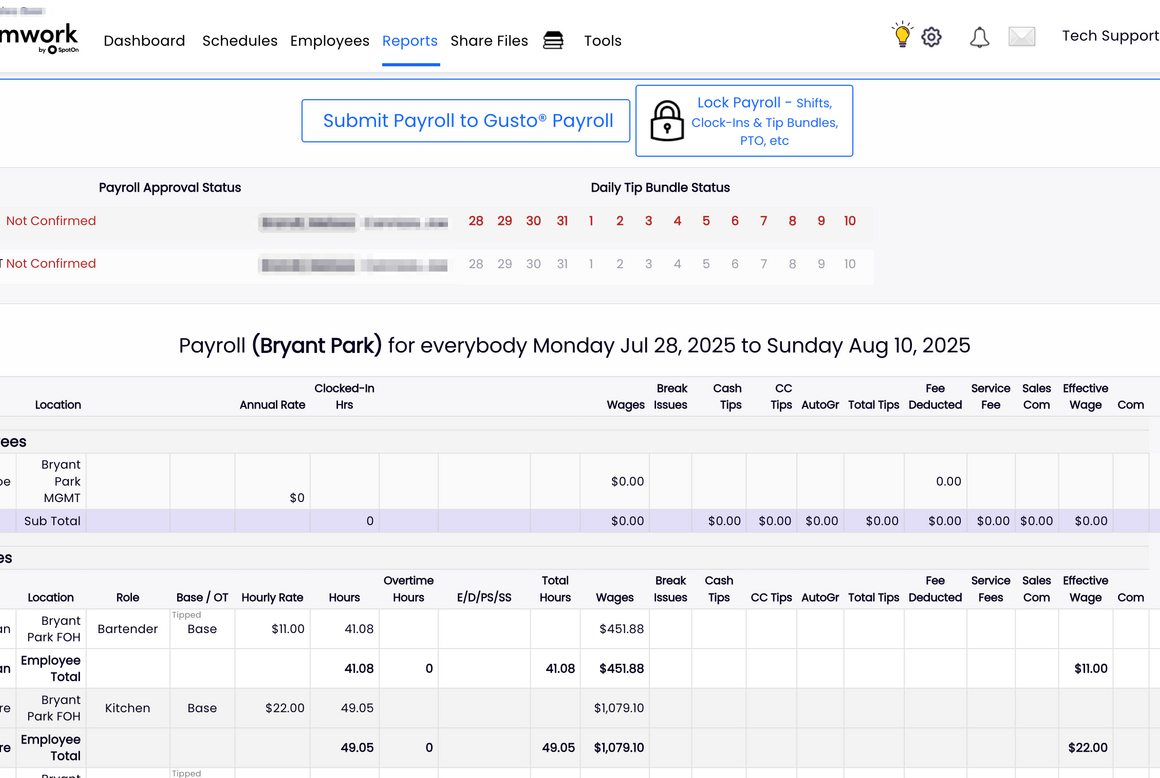
- To preview payroll, go to Reports from the main toolbar and select Payroll from the dropdown.
- Set the pay period and click Show Report to review the data.
- Resolve any warnings on Teamwork, and when ready, click Submit Payroll to Gusto Payroll. Then log in to Gusto, select Run Regular Payroll, review the synced data, make any edits, and finalize payroll.
Questions
For any other questions about the integration, reach out to [email protected] or visit the integration help center article here.
What you can do
Data sync between Gusto and Dolce
- Import employees from Gusto to Dolce.
- Ongoing sync of employee information in Dolce and Gusto.
- Sync additional earnings from Dolce into Gusto calculated in your partner’s platform.
- Sync your team’s hours from Dolce into Gusto for quick and accurate payroll.
Sync Gusto employee data onto Dolce (optional)
Use Gusto as your source of truth by syncing Gusto’s employee data to your Dolce employee accounts. Note: Only accounts that you match between Dolce and Gusto will be synced. Things that will be synced include:- First name (preferred if available)
- Last name
- Title