About
Dataddo is a no-code, Gusto-to-anywhere connector that lets you automatically sync your Gusto data to dashboards, CRMs, accounting tools, spreadsheets, databases, and more. Whether you need to build custom live payroll reports, keep employee records aligned across systems, or centralize HR data for finance and operations, Dataddo makes it easy—no coding or engineering effort required.
How It Works with Gusto
Dataddo connects to your Gusto account, extracting all the information you want—such as employee details, payroll runs, and benefits—and send it to your destination of choice:
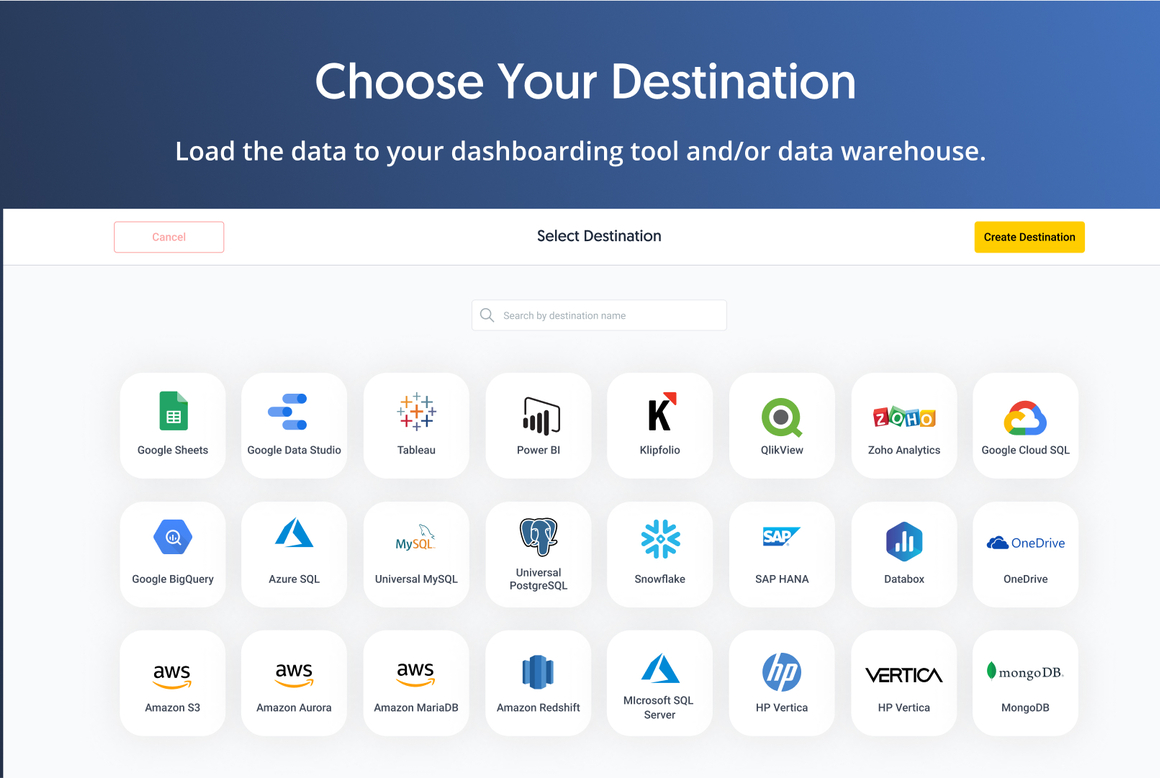
- Business Intelligence tools: Power BI, Tableau, Looker, Databox and more
- Databases and data warehouses: BigQuery, Snowflake, Redshift, Databricks…
- CRMs: Salesforce, HubSpot, Zoho…
- Accounting and ERP platforms: Netsuite, Odoo, QuickBooks, Xero…
- Spreadsheets and storage: Google Sheets, Excel, OneDrive, FTP…
All data flows are fully automated and can run on a schedule you define—hourly, daily, or custom.
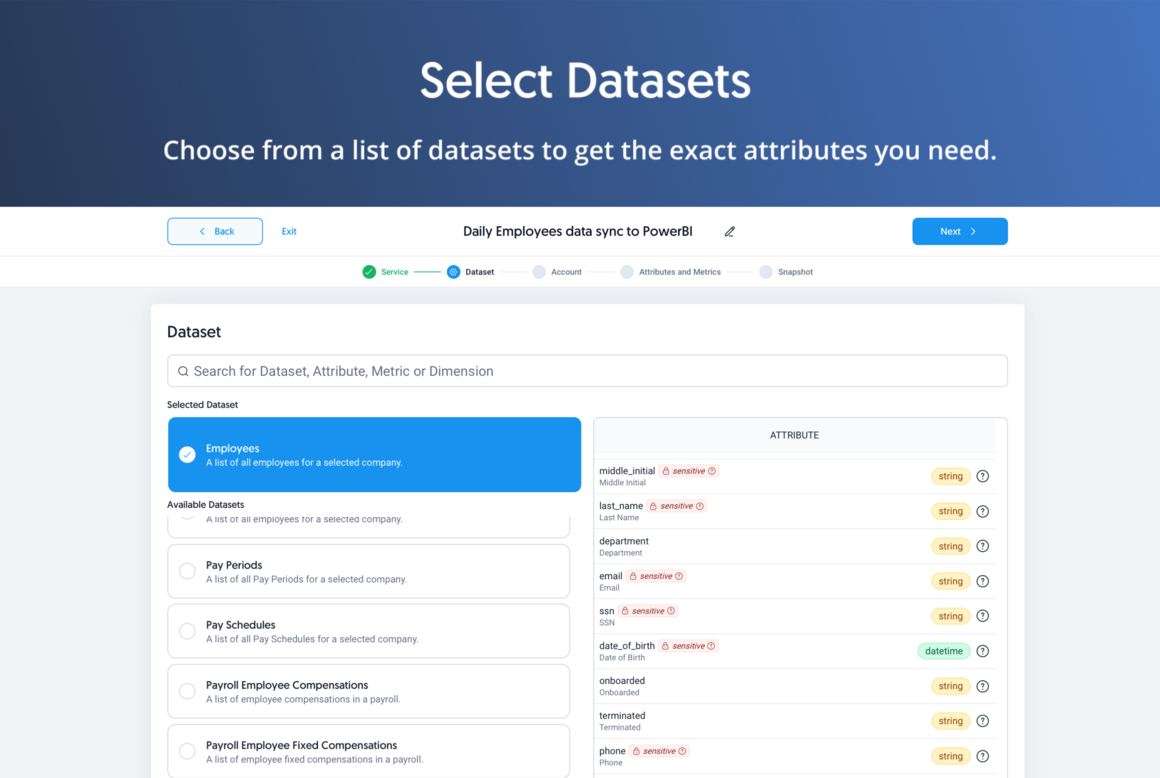
Dataddo automatically detects sensitive information and gives you the option to anonymize (hash) personally identifiable information (PII) before it’s shared—so you can send data for analysis while staying secure and compliant.
Key Benefits
- Reporting. Your Way: When built-in reports aren’t enough, build your own.
- No-code setup: Get started without developers
- Automated syncs: Export Gusto data on a regular schedule
- Centralized analytics: Combine HR and payroll data with data from 350+ other business tools
- One Source of Truth: Keep CRMs, ERPs, and financial systems aligned with Gusto
- Real human help: Get expert support when you need it
Integration Guide
- Sign up for Dataddo.
- Go to Authorize New Service and input your Gusto credentials.
- Next, Create a Source and choose Gusto. Follow the steps in the guide (here you will choose which data to sync, whether to hash sensitive data etc).
- Choose a Destination for your Gusto data and follow the steps.
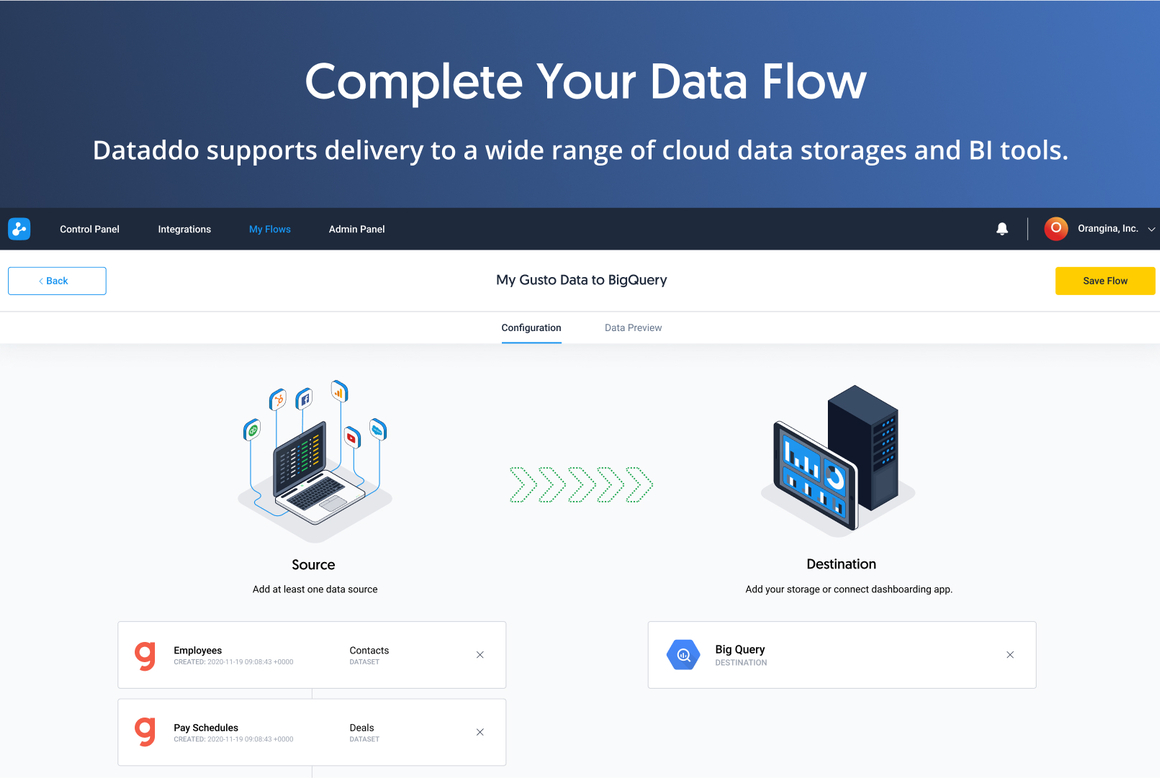
- Finally, go to Flows to connect Gusto data with your Destination. In this step you can choose the desired sync frequency and write mode (append, replace, etc).